
The menu on the left
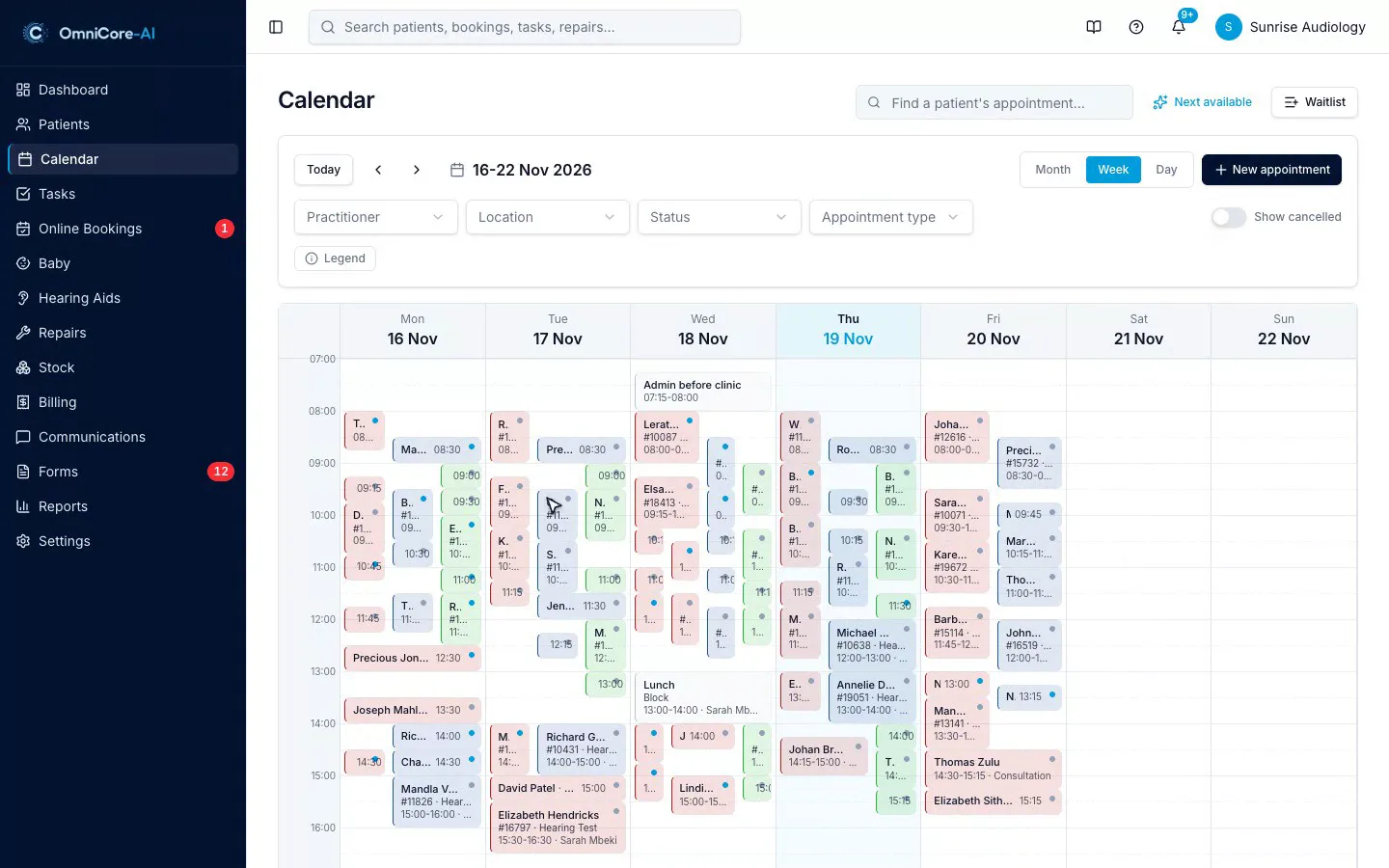
The menu takes you to each part of the practice: Dashboard, Patients, Calendar, Tasks, Online Bookings, Baby, Hearing Aids, Repairs, Stock, Billing, Communications, Forms, Reports and Settings.
You only see the items your practice has switched on and your role is allowed to open, so your menu may be shorter than a colleague's. A red number next to an item means something there is waiting for attention, such as unread messages or new online bookings.
Make more room
Click the small panel button at the far left of the top bar to fold the menu down to icons, and click it again to bring the names back. Hold the mouse over an icon to see its name. On a keyboard, Ctrl + B (Cmd + B on a Mac) does the same.
If everything looks too big or too small, change your browser zoom: Ctrl and minus to shrink, Ctrl and plus to enlarge (Cmd on a Mac). Many people find 80% comfortable on a laptop.
The top bar
- Search: finds patients, online bookings, tasks, hearing aids, repairs, forms and pages from anywhere.
- The question mark: the Help menu. It holds a short guide to the page you are on, the step-by-step tours, this guide, the videos and a way to contact support.
- The bell: your notifications. The number is how many are unread.
- Your account: your profile, switching practice if you work at more than one, and “Sign out”.
Get help on the page you are on
- 1Click the question mark at the top of the page, then “How this page works”.
- 2Read the numbered steps for that page.
- 3Click “Show me” to have OmniCore-AI walk you through the page itself, pointing at each button in turn.
You can stop a tour at any time. The Help menu shows “Pick up at step…” so you can carry on later, or “Start over”.
Read your notifications
Click the bell. Click a notification to open the thing it is about; that also marks it as read. “Mark all read” clears the count, and the “Unread” tab hides what you have already seen.
If the bell is noisy with things that are not yours to deal with, turn those types off. See “Choose which notifications you get”.
Closing things
Panels that slide in from the right and pop-ups in the middle of the screen all close the same way: click the X, press Escape, or click the dimmed area outside them.
Related guides
Still stuck? Ask us and we will show you. Inside OmniCore-AI, the Help menu (the question mark at the top of every page) opens a short guide for that page.