
What the tab shows
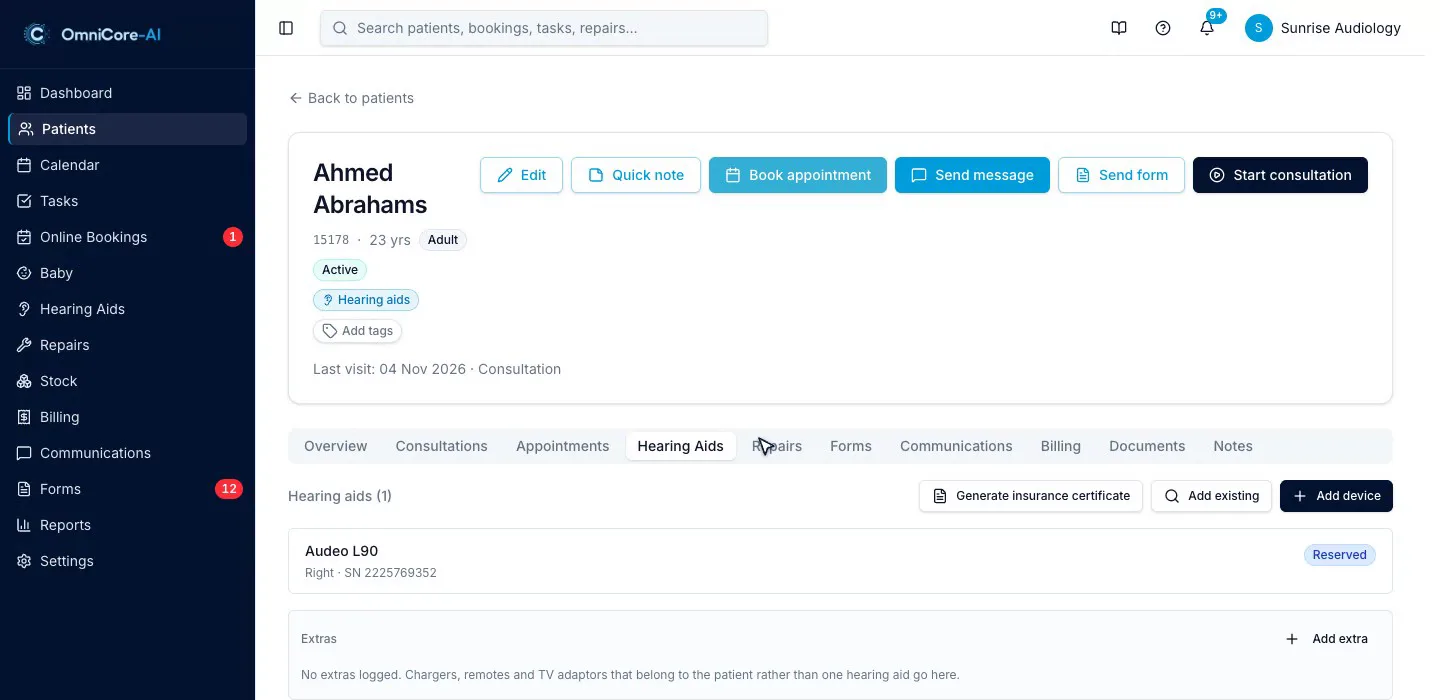
Open the patient's file and click the “Hearing Aids” tab. Current devices are at the top. A linked left and right pair shows as one card marked “Pair”.
Each device shows its model, side, serial number and status, with its receiver, dome, mould, wax guard and battery, when it was fitted, and when the warranties end.
Older devices stay out of the way
Devices marked Retired or Old are folded away under “Retired / old devices”. “Previously worn / trialed” lists devices the patient tried and returned. Nothing is lost, but the top of the tab only shows what matters today.
Add a device
- “Add device”: capture a new device for this patient.
- “Add existing”: pick a device that is already in stock or a demo unit. Search by serial number, make or model.
Change or retire a device
Click a device to edit it. To retire one, change its “Status” to Retired or Old. It moves down to the retired list and no longer counts as a device the patient is wearing.
Related guides
Still stuck? Ask us and we will show you. Inside OmniCore-AI, the Help menu (the question mark at the top of every page) opens a short guide for that page.