
The top of the file
Everything about a patient is linked to one file. You never need their file number to find it: a name, phone number or email address is enough.
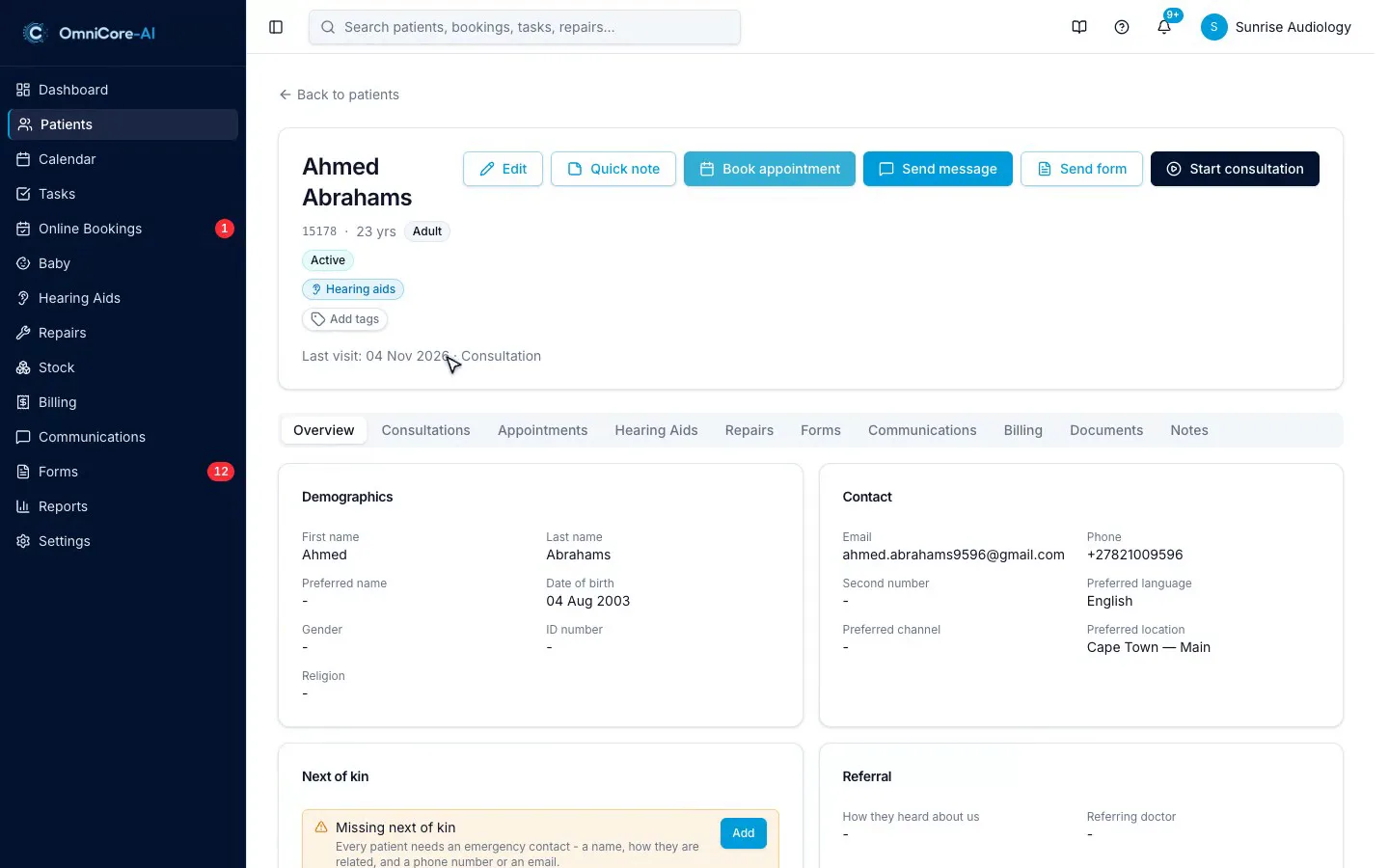
Under the patient's name you see their file number, age, category and status. If another patient referred them, a “Referred by” chip names that patient and links to their file.
Hearing aids at a glance
For a hearing aid patient, a “Hearing aids” chip shows how many devices are on their file, and a box titled “Hearing aid parts to prep” lists what they are wearing now: each device's serial number with its receiver, dome, wax guard and battery.
Only devices that are Active or On trial appear in that box. Something the patient wore years ago is kept on the Hearing Aids tab but stays out of your way here, so you can see exactly what to prepare or order before they arrive.
Last visit
“Last visit” shows the date, appointment type and summary of the most recent completed consultation.
The tabs
- “Overview”: demographics, contact details, next of kin, referral, address, medical aid and communication consent.
- “Consultations”: the latest quick note and the history of every consultation, each with a short summary.
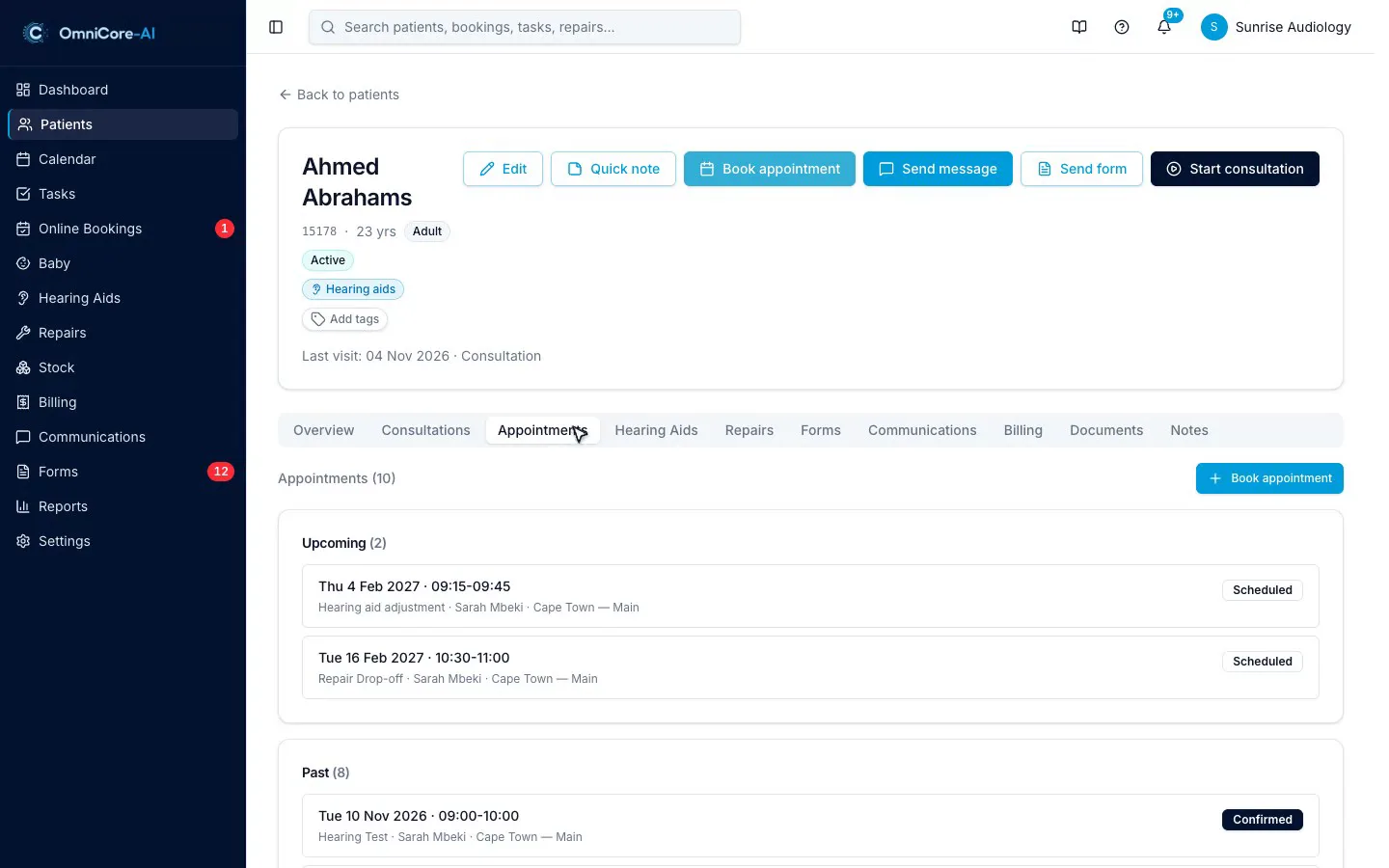
- “Appointments”: upcoming and past appointments, including cancelled ones.
- “Hearing Aids”: every device, its parts and warranties, and the insurance certificate.
- “Repairs”: each repair job for this patient and where it got to.
- “Forms”: forms you have sent and whether they were opened, and forms that were submitted.
- “Communications”: every WhatsApp, SMS and email between the practice and this patient.
- “Billing”: the patient's statement of account.
- “Documents”: files in folders.
- “Notes”: quick notes, newest first.
Warnings worth noticing
- “Missing next of kin” on the Overview means there is no emergency contact on file. Click “Add”.
- An amber “Appointment note” is shown on every appointment for this patient, for example that they need a phone call to confirm.
- Under “Communication consent”, a delivery flag such as a bounced email means messages on that channel are not arriving.
Related guides
Still stuck? Ask us and we will show you. Inside OmniCore-AI, the Help menu (the question mark at the top of every page) opens a short guide for that page.