
Add a document
- 1Open the patient's file and click the “Documents” tab.
- 2Click “Add document” and choose one or more files from your computer.
- 3Choose the “Folder” and confirm.
There is no need to print something only to scan it back in. Save it to your computer as a PDF and add it from there.
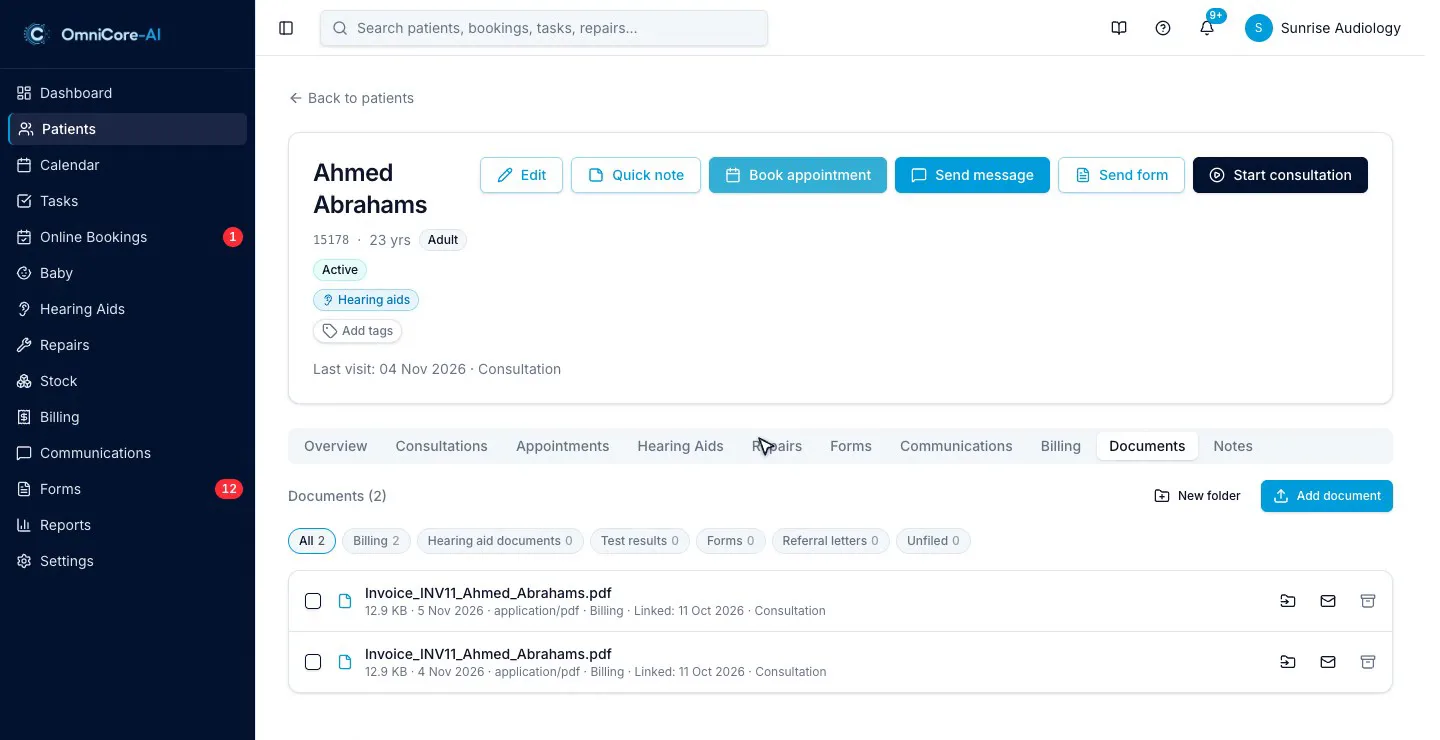
Folders
Every practice starts with four folders: “Billing”, “Hearing aid documents”, “Test results” and “Forms”. Anything not in a folder is under “Unfiled”. An admin can add more with “New folder”.
Click a folder chip above the list to see only that folder. The number on each chip is how many documents it holds.
Documents that file themselves
Documents that OmniCore-AI creates are put in the right folder for you.
- Invoices, statements, receipts, claims and quotes go to “Billing”.
- Insurance certificates, delivery notes and repair reports go to “Hearing aid documents”.
- Reports, audiograms and completed test forms go to “Test results”.
- Completed intake forms go to “Forms”.
Link a document to a consultation
A referral letter or a school report usually belongs to one visit. Click the “Assign to consultation” icon on the document's row and pick the consultation. The document then shows on that consultation, and its row reads “Linked” with the date and type.
Open, mark up and rename
Click a document to open it over the file. Use the arrows to move to the next one, and the zoom buttons to read small print.
A PDF opens with annotation tools, so you can highlight, write on it or add a stamp. Click “Save to patient file” to keep your changes, and “Rename document” to give it a clearer name. Nothing has to be downloaded and uploaded again.
If you close a document with unsaved changes, OmniCore-AI asks before discarding them.
Move, email or archive
- Tick one or more rows, then use “Move to” to change folder.
- Click the “Email to patient” icon on a row to send the document to the patient.
- Click the “Archive document” icon to remove a document from the list. An admin can bring it back.
Related guides
Still stuck? Ask us and we will show you. Inside OmniCore-AI, the Help menu (the question mark at the top of every page) opens a short guide for that page.