
Open the edit page
- 1Open the patient's file and click “Edit”.
- 2Change what you need to.
- 3Click “Save changes”.
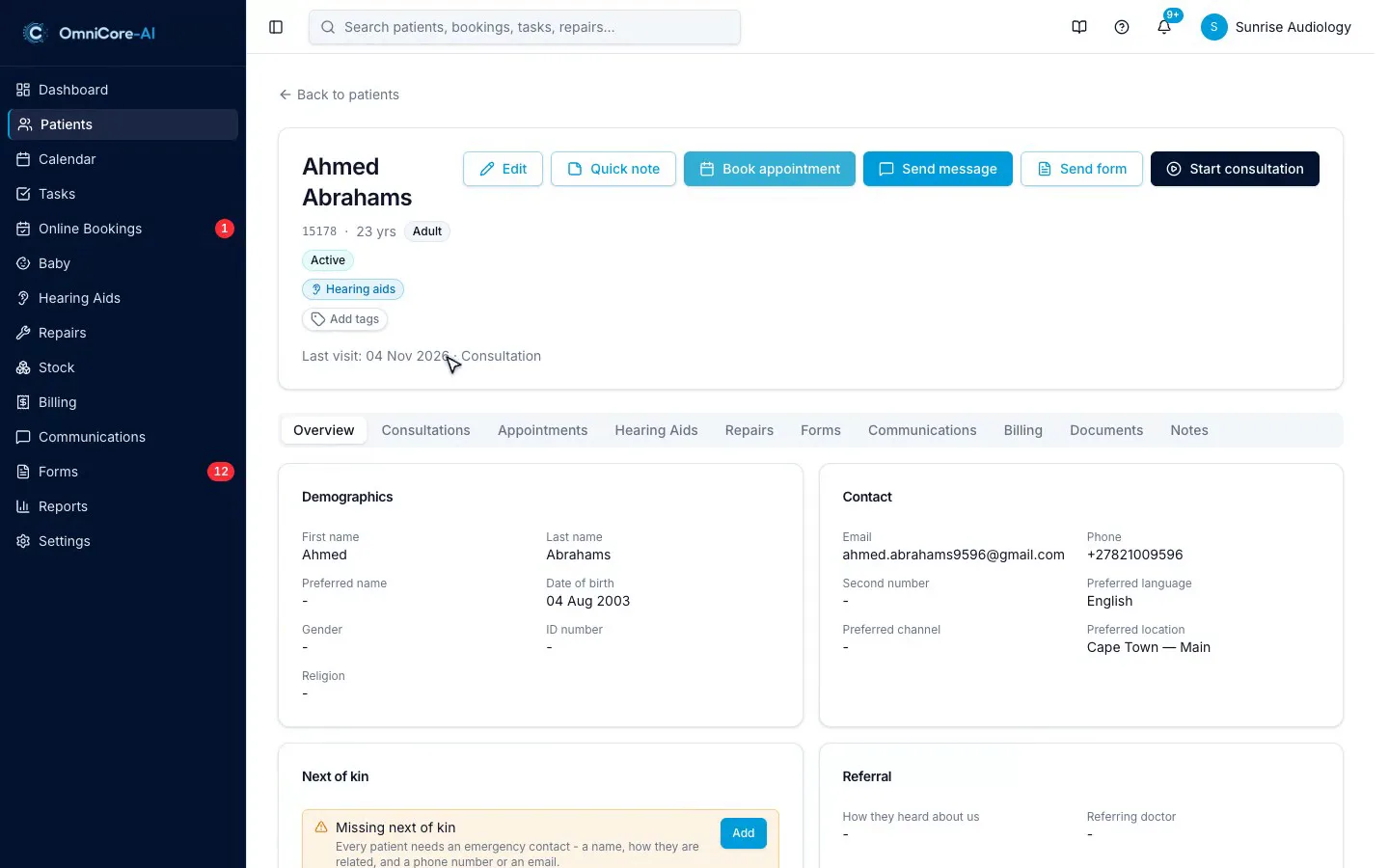
What is on the page
- “Identity”: names, date of birth, ID number, religion and occupation.
- “Contact & Address”: email, phone, a second number and the address.
- “Next of kin”: an emergency contact.
- “Clinical”: status, preferred location, language and communication channel, and who referred them.
- “Medical Aid”: provider, plan, member number and dependant code.
- “Communication consent”: whether they agreed to SMS, email and WhatsApp.
- “Notes”: internal notes and the appointment note.
Category follows the date of birth
You do not set a patient's category by hand. It is worked out from their date of birth: Baby under one year, Paediatric under 13, Geriatric from 65, and Adult in between. Correct the date of birth and the category follows.
Next of kin
Every new patient needs a next of kin: a name, their relationship, and a phone number or an email. It is who you call in an emergency.
Older files without one still save your other changes. Once you start filling in the next of kin, the name, the relationship and one contact detail are all required.
Occupation and medical aid
“Occupation” is the patient's job or profession, not their employer's name. It is not asked for babies and children.
Under “Medical Aid”, the “Dependant code” is the two digits printed on the card; 00 is the main member. If the patient is on someone else's medical aid, tick “Dependent on another member's medical aid” and link the main member.
Communication consent
Tick “SMS”, “Email” or “WhatsApp” only after asking the patient. Without consent on a channel, no reminders or confirmations are sent on it. The intake form records their answer for you when they fill it in themselves.
A note that shows on every appointment
Type it in “Appointment note”. It appears in amber on each of the patient's appointments, so whoever books or confirms sees it. Use it for things like “needs a phone call to confirm” or “wheelchair access”.
Related guides
Still stuck? Ask us and we will show you. Inside OmniCore-AI, the Help menu (the question mark at the top of every page) opens a short guide for that page.