
Search the Patients page
- 1Click “Patients” in the menu.
- 2Type at least three characters in “Search name, file number, ID number, phone or email”.
- 3Click the patient's name or file number to open their file.
The search looks at first name, last name, preferred name, file number, ID number, both phone numbers and the first part of the email address. Type two words, such as a first name and a surname, and both must match.
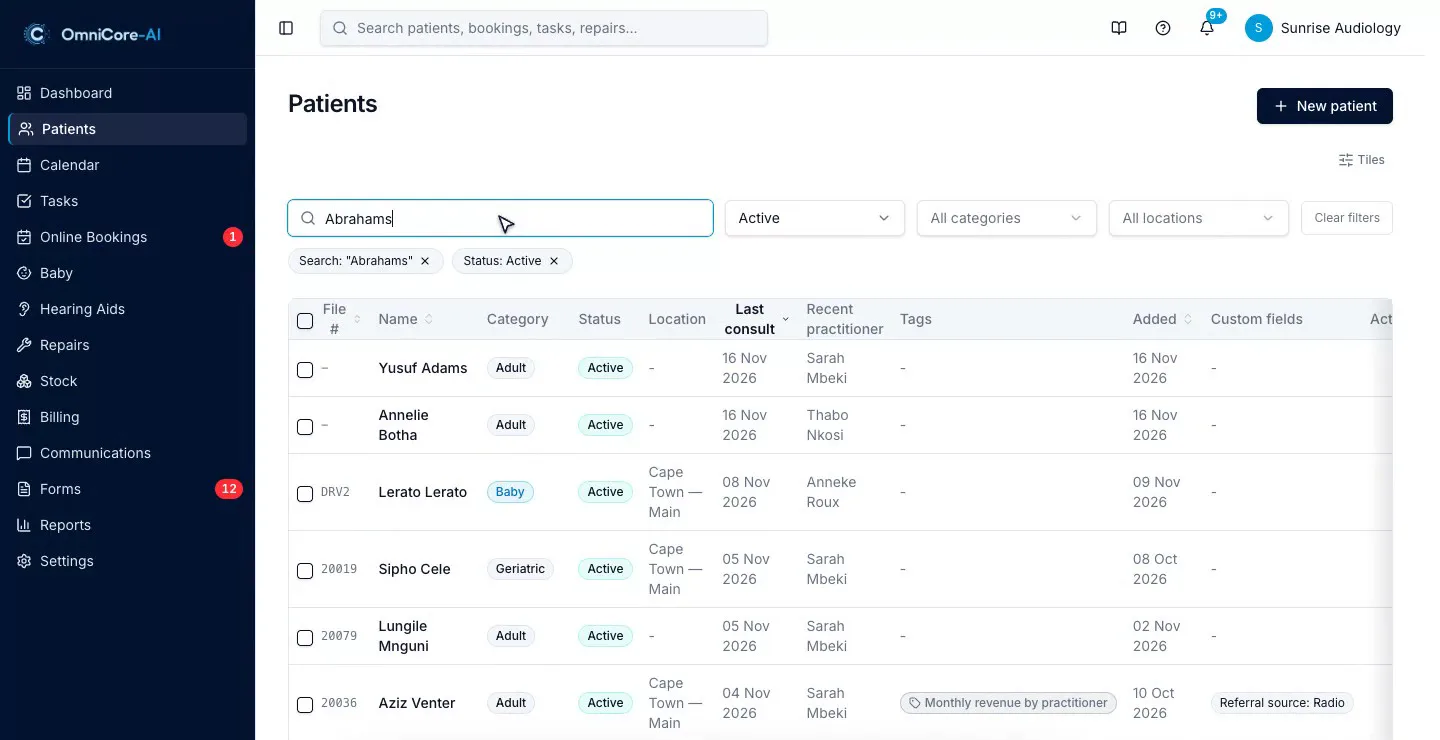
Narrow the list with filters
Next to the search are three filters: status, category and location. You can pick more than one value in each. Whatever is switched on shows as a chip under the search, and the line under the table tells you how many patients match.
- Status: Active, Inactive, Archived or Deceased.
- Category: Baby, Paediatric, Adult or Geriatric. It is worked out from the date of birth.
- Location: the patient's preferred location.
Why you cannot find someone
The list opens showing Active patients only, because that is who you want nearly all the time. A patient who is inactive, archived or deceased is hidden until you change the status filter.
If a search comes back empty, look at the chips under the search box, then click “Clear filters” and search again.
Your filters are remembered between visits. Your search is not.
Sort the list
The list starts with the most recently seen patients at the top. Click “File #”, “Name”, “Last consult” or “Added” to sort by that column, and click again to reverse it. You can also drag a column heading to reorder the columns.
Do something without opening the file
Click the three dots at the end of a row for “Book appointment”, “Send message”, “Send email”, “Create task” and “Edit”.
Related guides
Still stuck? Ask us and we will show you. Inside OmniCore-AI, the Help menu (the question mark at the top of every page) opens a short guide for that page.