
Open the account
Open the patient's file and click the “Billing” tab. It shows their statement of account. The banner at the top gives the answer most people want first: “Patient owes” and the amount, or “In credit”.
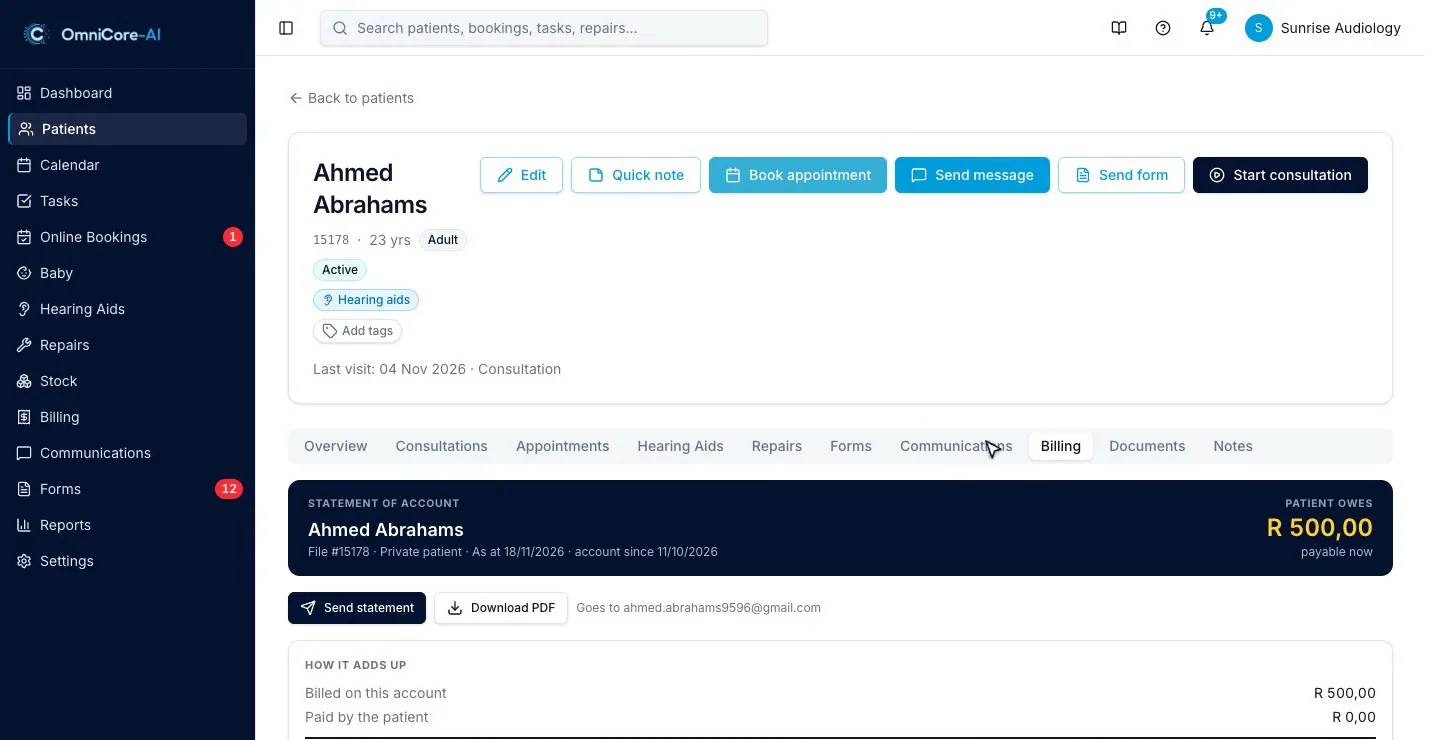
How it adds up
- “How it adds up”: what was billed, what the medical aid paid, what the patient paid, and what is still expected from the medical aid.
- “Open invoices · who still pays what”: each unpaid invoice, split into what the medical aid owes and what the patient owes.
- “Activity on the account”: every charge, payment and refund in date order, with a running balance.
A payment line says who paid, how, and the receipt number. Click any invoice number to open that invoice.
How old the debt is
Under the activity, the unpaid balance is split by age: “Current”, “30 days”, “60 days” and “90+ days”. The older amounts turn red, so you can see at a glance which accounts need a call.
Send a statement
- 1Check the line next to the button. It tells you the email address and the WhatsApp number the statement would go to.
- 2Click “Send statement”.
- 3Choose “Email” or “WhatsApp”. The statement is sent as a PDF either way.
The statement goes to the main member of the medical aid if there is one, otherwise to the patient. On WhatsApp there is one exception: if the main member has not agreed to WhatsApp messages, it goes to the patient instead. The menu says who will get it before you click.
A greyed-out choice tells you why, for example no email address, no cellphone number, or no WhatsApp consent. Fix that on the patient's file first.
The automatic monthly statements still go by email only.
Click “Download PDF” to save or print the statement instead.
When a patient says they never received it
“Statements sent” lists each statement with the date and time, the address or number it went to, whether it went by email or WhatsApp (the “Via” column), the balance at the time, and the outcome. Click “PDF” to open the exact statement that was sent. Click “Email” to open the email and check whether it was delivered or bounced, or “Message” to open the WhatsApp conversation with the patient.
That gives you the facts for the conversation: when it went, where it went, and whether the address or number is wrong.
Send or print one invoice
Open the invoice from the statement. Its toolbar has “Print”, “Download PDF” and “Send”, which offers Email or WhatsApp.
Related guides
Still stuck? Ask us and we will show you. Inside OmniCore-AI, the Help menu (the question mark at the top of every page) opens a short guide for that page.